

How long does it take to build a website?
How long it takes to build a small-business website: DIY, freelancer, studio and agency timelines, what slows projects down, and a realistic 10-day schedule.

To add your business to Google Maps, create a free Google Business Profile at business.google.com/add (or claim the listing that already exists), enter your real name, category and location, then verify that you run the business. Once Google verifies you, your business can show on Maps and in Search, first for your own name and over time for searches like “bakery near me”.
The details matter, because a wrong category, a home address that should be hidden or a keyword in your name can keep you off the map or get the profile suspended. Everything below follows Google’s help pages as they read in November 2026, with links, since Google changes these steps often.
Before you create anything, search Google Maps for your business name and city. If a listing shows up, you’ll claim it instead of making a new one.
Google’s add or claim page covers both paths. If the listing isn’t verified, open it, select “Claim this business” and then “Manage now”. If someone else already verified it, like a former partner or an old marketing company, don’t start a second profile. Request ownership from the current owner instead. Google’s guidelines for representing your business say not to create more than one page for each location.
Google confirms the profile itself costs nothing. Its Canadian page calls it a free Business Profile.
Sign in with an account the business owns
Use a Google account that belongs to the business, not a staff member's personal Gmail, so the profile doesn't leave when they do.
Go to business.google.com/add
Select Add your business to Google and follow the prompts. If your business already appears on Maps, claim it from the listing instead.
Enter your real business name
Use the name on your sign, your invoices and your registration. Leave out taglines, neighbourhood names and service keywords.
Pick the most specific primary category
Choose from Google's list. You can't invent a category, and the one you pick affects which searches you show up for.
Add your address or your service area
Show an address only if customers visit you there during your hours. If you go to them, list the areas you serve.
Add your phone number and website
Use a number a person at the business answers, and a web page that describes this location.
Verify
Choose from the methods Google offers you. Google decides which ones your business gets.
The primary category is the choice that most affects where you appear. Google’s category help page says the categories you pick affect your local ranking, and the experts in Whitespark’s 2026 Local Search Ranking Factors survey agree. The 47 local search specialists in that survey ranked the primary category as the most important factor for showing in the map results, just ahead of how close the business is to the person searching.
Pick the most specific category that fits. Google’s own example is choosing “Nail salon” over “Salon”, and its guidelines suggest the category should finish the sentence “this business is a”. Add extra categories only for real departments, like a bakery inside a grocery store, and not one for every product. If you change a category later, Google may ask you to verify again.
This is where home-based businesses most often go wrong. Google’s service-area help page sorts businesses into three types. A storefront business serves customers at its own address during its stated hours and has permanent signage there. A service-area business goes to its customers, like a plumber, a house cleaner or a mobile dog groomer. A hybrid business does both, like a restaurant that also delivers.
If you run the business from home and customers don’t come to you, set it up as a service-area business and remove the address from the profile. Google says that if you don’t serve customers at your business address, you should take it off, and its guidelines say service-area businesses should hide their address. Google may still ask you to show where you’re based when you verify, but the address won’t appear on Maps.
A few rules come with service areas. You can list up to 20 areas by city, postal code or region, and you can’t draw a radius around your base. The whole area should stay within about two hours’ drive of where you’re based. Businesses selling age-restricted products, like alcohol or cannabis, need a storefront. The guidelines also rule out virtual offices and mailbox addresses, and a co-working desk only counts if it has signage and your own staff are there during your hours. Google says changes to a service area can take up to 48 hours to show.

Verification proves you run the business, and Google says only verified businesses can show their details on Maps and Search. Google’s verification page lists five methods: a code by phone call or text, an email, a live video call with a Google support person, a postcard mailed to your address, and a recorded video. You don’t get to pick freely. Google decides which methods your business is offered, and the page says that can’t be changed.
When video recording is offered, Google recommends it. The video rules ask for one unedited clip of at least 30 seconds, recorded live on your phone through the profile. A storefront should show street signs or the building number, permanent signage with the same name as the profile, and something only staff can open, like the till or the stock room. A service-area business should show landmarks near its base, its tools or branded van, and the owner doing the work or holding a business document in the profile’s name. If you work from home, Google says you can film landmarks and signs in your immediate neighbourhood. Keep other people’s faces and any bank or tax numbers out of the shot.
If you get a postcard instead, Google says most codes arrive within 14 days and expire after 30. Whatever the method, the review that follows usually takes up to 5 business days. Codes sent by phone won’t get through an automated phone menu, so give Google a number a person answers.
Verification puts you on the map. A complete profile is what makes people pick you. Google’s local ranking tips say businesses with complete and accurate information are more likely to show up in local results.
List your regular customer-facing hours, and add special hours for holidays so nobody drives over to a locked door. Google’s guidelines say businesses that work only by appointment shouldn’t list hours at all.
Service businesses can list what they do in Google’s services editor. Google suggests options for your category, so a plumber might see Install faucet or Repair toilet, and you can add your own with a description and a price. Keep prices and phone numbers out of the service names themselves, because Google rejects those automatically.
Photos only appear once you’re verified. Google’s photo guidelines ask for JPG or PNG files between 10 KB and 5 MB, at least 250 by 250 pixels, with 720 by 720 recommended. They should be in focus, well lit and not heavily filtered. Start with an outside shot so people recognise the place when they arrive, then add the inside, your team and your work. Videos can run up to 30 seconds. Use real photos of your own business, since the Whitespark experts count stock photos on a profile as a negative signal.

Google’s guidelines ask for a link to a page that represents this location. With one location your home page is fine, and with several, link each profile to its own location page. Check that the link works and doesn’t forward to a different domain, which the Whitespark experts list among suspension risks. A profile works without a website, but the site is where people go to check prices and book. If you don’t have one yet, here’s what a small business website costs in Canada, and our guide to website hosting in Canada covers keeping it fast and online. Our own C$2,900 website package includes setting up this listing, if you’d rather hand the whole job off.
Google says local results are mainly based on relevance, distance and how well known a business is, which it calls prominence. Relevance is how well your profile matches the search. Distance is how far you are from the person searching, and you can’t change it. Prominence comes from things like how many websites link to you and how many reviews you have. Google also says there’s no way to request or pay for a better local ranking. Our local SEO checklist for Vancouver businesses covers the website and review side of this in more detail.
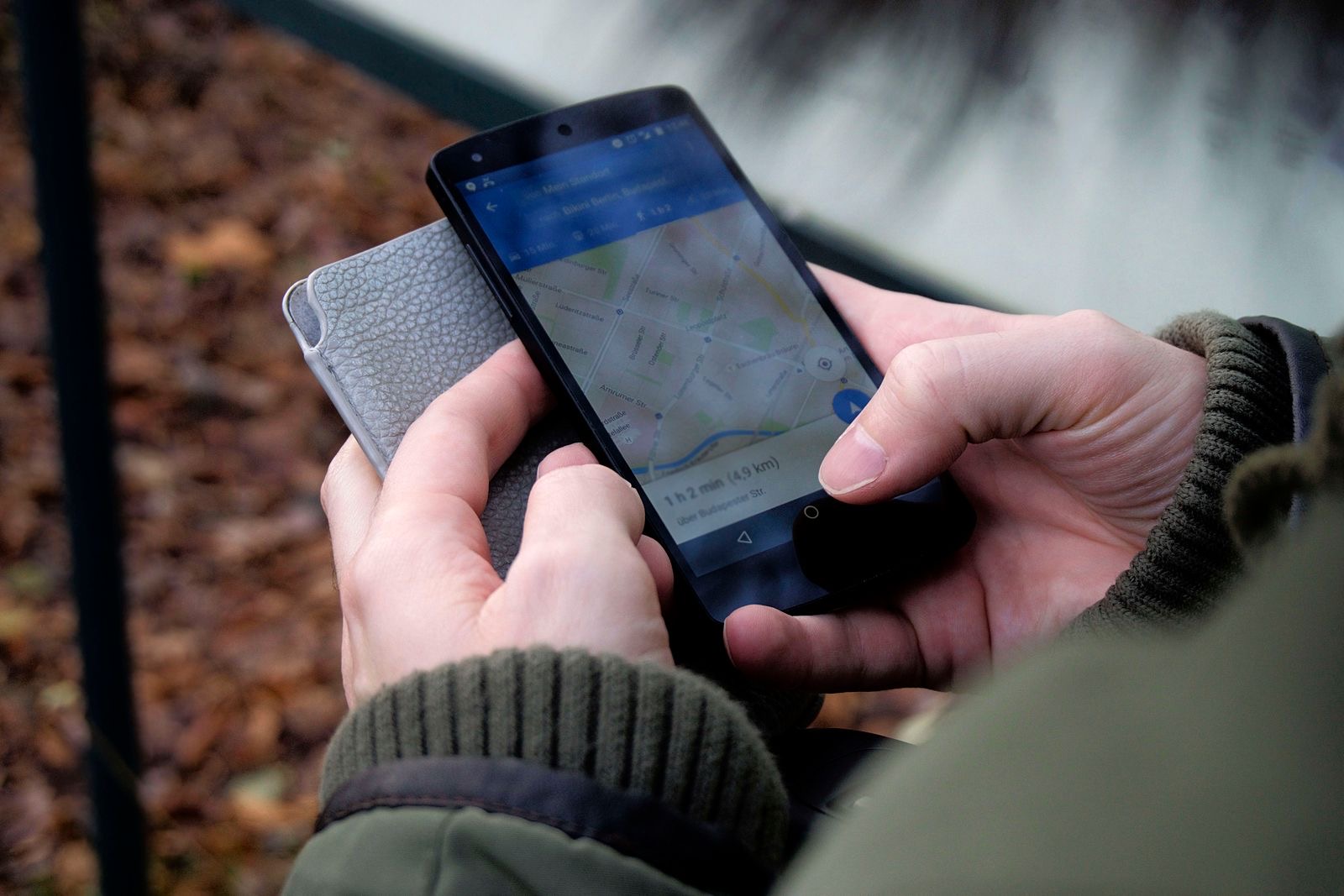
Google’s review tips are simple. Ask customers for a review, make it easy with the review link or QR code from your profile, and reply to what people write. Customers need a Google account to leave one, though it doesn’t have to be a Gmail address.
Two rules matter more than any tip. First, never offer anything in return. Google treats a discount or a freebie in exchange for a review as fake and misleading content, and it’s strictly prohibited. Second, be careful with staff reviews. In January 2024 the Competition Bureau warned businesses that employees reviewing their own employer must disclose the connection, and that anyone who writes or allows misleading reviews could be liable under the Competition Act.
Ask every customer, not only the ones you know are happy. The Whitespark experts rank review gating, meaning only inviting the happy ones, among the top suspension risks. The easiest habits are asking in person at the end of a job, putting the link in your invoice email and keeping a QR code at the counter. Reply to every review, including the bad ones, with something short and personal that doesn’t read like an ad.
When a profile doesn’t appear, Google’s troubleshooting page points to three causes. The profile isn’t verified yet, the information is incomplete or wrong, or it broke the guidelines and was disabled or suspended, in which case it stays hidden until you fix it. Timing matters too. Google says edits can take up to 3 days to appear, and rankings for a new business can take up to a month. Search your exact business name and city before you worry about general searches.
Suspensions usually trace back to a guideline problem. Whitespark asked its experts which factors carry the most suspension risk, and their top answers line up with Google’s rules on addresses, names and reviews.
If your profile is suspended, fix the problem first, then use Google’s appeals process. You can attach evidence such as your business registration, a business licence, tax certificates or utility bills, and the name and address on them should match the profile. Google says an appeal can only be submitted once, so take your time with it, and don’t create a new profile for the same business while you wait.
Yes. Google doesn't charge to create or keep a Business Profile. Google Ads are separate and optional, and Google says there is no way to pay for a better local ranking.
Google says most verification reviews finish within 5 business days, and most postcard codes arrive within 14 days. After that, Google says rankings for a new business can take up to a month to appear.
Yes. If customers don't come to you, set the profile up as a service-area business, remove the address and list the areas you serve instead. Google may still ask you to show where you're based during verification, but the address won't appear on Maps.
The usual reasons are that the profile isn't verified yet, the details are incomplete or wrong, or it was suspended for breaking Google's guidelines. Search your exact business name and city first. Showing up for general searches like plumber takes longer and depends on relevance, distance and prominence.
No. Google's guidelines say to use the name your customers see on your sign and paperwork. Adding extra words isn't permitted and can get the profile suspended.
How long it takes to build a small-business website: DIY, freelancer, studio and agency timelines, what slows projects down, and a realistic 10-day schedule.

A plain-English local SEO checklist for Vancouver small businesses: what Google says decides local rankings, reviews, website basics, directories and traps.

Real 2026 website prices in Canadian dollars: Wix, Squarespace, Shopify and GoDaddy plans, .ca domains, freelancers, studios, agencies and monthly costs.